
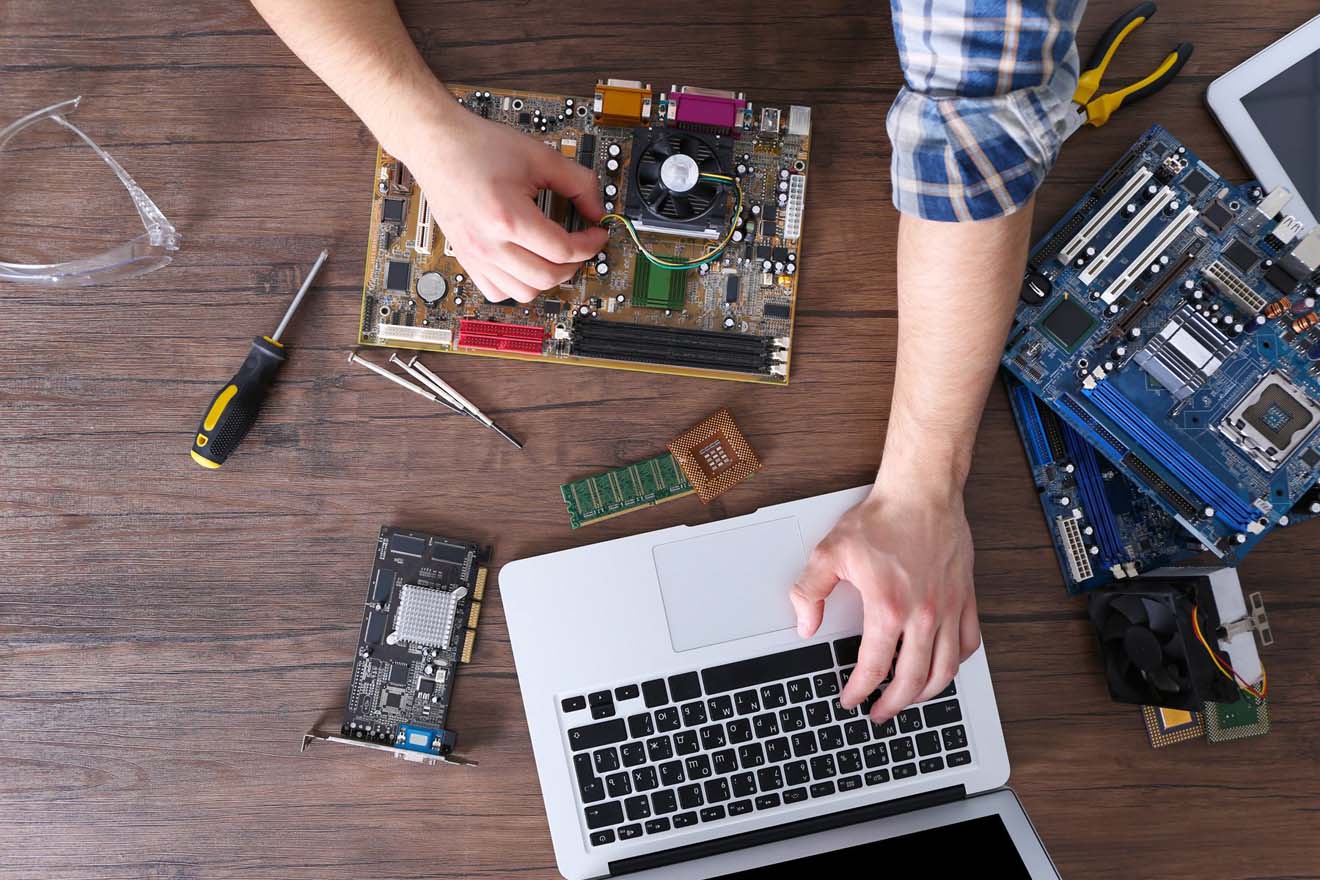
Computer problems rarely happen at a convenient time. A device may suddenly stop starting, become unusually slow, display error messages, overheat, lose important files, or develop hardware problems after years of use. For homes, students, remote workers, and businesses in Kansas City, a computer issue can quickly interrupt work, communication, entertainment, and access to important information.
The first step is not always replacing the computer. In many situations, the underlying problem can be identified and addressed through the right repair, upgrade, maintenance, or configuration service. Understanding the symptoms can help you make a more informed decision and avoid spending money on a solution that does not address the actual cause.
A reliable repair process should begin with diagnosis. Instead of immediately replacing components, a technician should look at the device’s symptoms, operating condition, hardware, software, and recent changes. This approach can help determine whether the problem is related to hardware, software, malware, storage, memory, overheating, operating-system issues, or another cause.
Understanding Computer Problems Before Choosing a Repair Solution
Some computer problems are obvious, while others develop gradually.
A computer that will not turn on is an immediate concern, but slower performance can be more difficult to evaluate. If a device that previously worked normally has become significantly slower, freezes frequently, crashes, or takes unusually long to open applications, there may be an underlying issue.
Other warning signs include:
- Frequent system crashes
- Unexpected shutdowns
- Programs refusing to open
- Excessive fan noise
- Overheating
- Strange pop-ups
- Unusual browser behavior
- Missing or corrupted files
- Storage warnings
- Battery problems
- Damaged screens or keyboards
- Internet connection problems
These symptoms do not necessarily identify one specific problem. For example, slow performance can be caused by insufficient memory, an aging storage drive, excessive background processes, malware, or operating-system issues.
That is why proper diagnosis matters.
When Computer Repair Is a Better Option Than Replacement
Replacing a computer can be expensive, particularly when the device still has useful hardware and meets the user’s basic needs.
In some cases, a targeted repair or upgrade can extend the computer’s useful life.
For example, replacing an aging storage drive with an SSD can improve responsiveness, while increasing RAM may help a computer handle multiple applications more comfortably.
A professional Computer Repair Service can help identify whether the current device is worth repairing or upgrading before you invest in a completely new system.
This type of evaluation is especially useful when the problem is not obvious. Instead of guessing which component needs replacement, a technician can investigate the symptoms and recommend an appropriate next step.
Why Diagnosis Should Come Before Parts Replacement
One of the biggest mistakes people can make with computer repairs is replacing parts based on assumptions.
A slow computer does not automatically mean the hard drive is failing. A noisy computer does not always mean the cooling fan needs replacement. A system that crashes may have a software issue rather than a defective component.
Replacing the wrong part can waste both time and money.
A proper diagnostic process considers the entire system. The technician may review hardware health, operating-system behavior, storage capacity, memory usage, temperatures, installed programs, security concerns, and other relevant factors.
The goal is to identify the actual cause rather than simply treating one symptom.
Understanding Software-Related Problems
Not every computer problem requires physical repair.
Software can create significant performance and usability issues. An operating system may become corrupted, applications may conflict with each other, drivers may become outdated, or configuration changes may cause unexpected behavior.
Users may also install programs that consume excessive system resources or interfere with normal operation.
In these situations, reinstalling hardware will not necessarily solve the problem.
Software troubleshooting can involve checking system settings, removing problematic applications, repairing damaged files, updating required components, and reviewing system behavior.
A technician should also explain what changes are being made so the customer understands the repair rather than simply receiving a device with unexplained modifications.
Protecting Your Computer From Viruses and Malware
Security problems can be particularly disruptive because they may affect both computer performance and personal information.
Warning signs can include unusual pop-ups, browser redirects, unknown applications, unexpected system behavior, or significant slowdowns.
However, some malicious software may operate without obvious symptoms.
If malware is suspected, the computer should be assessed carefully rather than continuing to use it normally without investigating the issue.
Professional Virus & Malware Removal Service can help identify and address malicious software while also considering steps that may reduce the likelihood of future infections.
Users should also practice basic security habits, including keeping software updated, using reputable security tools, avoiding suspicious downloads, and being careful with unexpected email attachments and links.
When an SSD Upgrade Makes Sense
Storage technology has a major effect on how quickly a computer starts and accesses information.
Traditional hard disk drives can become slower as they age, while an SSD can provide significantly faster access to stored data in many systems.
An SSD upgrade may be worth considering when a computer takes a long time to boot, applications load slowly, or the existing storage device is aging.
However, compatibility should be checked before installation.
The technician should verify the appropriate drive type, available connection, storage capacity, operating-system requirements, and data migration needs.
A properly planned SSD Installation Services project can be an effective way to improve system responsiveness without replacing the entire computer.
More RAM Can Improve Multitasking
Memory, commonly referred to as RAM, affects how many tasks a computer can comfortably handle at the same time.
A system with limited RAM may struggle when users open numerous browser tabs, run large applications, edit media, work with business software, or multitask across several programs.
Signs of insufficient memory can include frequent slowdowns, excessive reliance on virtual memory, or noticeable performance drops when multiple applications are running.
A RAM upgrade can sometimes provide a practical performance improvement.
However, not every computer can accept additional memory. Maximum supported capacity, memory type, available slots, and motherboard compatibility all need to be checked before purchasing a module.
Overheating Should Not Be Ignored
Heat is another common source of computer trouble.
Computers generate heat during normal operation, but excessive temperatures can cause performance problems, unexpected shutdowns, instability, and long-term component stress.
Dust buildup, blocked ventilation, failing fans, dried thermal material, or poor airflow can contribute to overheating.
Users may notice fans running constantly or becoming unusually loud. The computer may also slow down during demanding tasks.
Rather than continuing to operate an overheating system without investigation, it is better to determine why temperatures are increasing.
Cleaning and cooling-related maintenance may help when the problem is caused by airflow or accumulated dust.
When a Laptop Battery Becomes a Problem
Laptop batteries naturally lose capacity over time.
A battery that once lasted several hours may eventually provide much less usable time. Other warning signs can include unexpected shutdowns, charging difficulties, rapid battery drain, or a device that works reliably only when connected to power.
Battery replacement may be practical when the rest of the laptop remains useful.
Before replacing the battery, compatibility should be confirmed because laptop batteries vary by model.
It is also important to distinguish between a battery problem and an issue with the charger, charging port, or power-management system.
Screen and Keyboard Problems Need Different Solutions
Physical damage can make a laptop difficult or impossible to use comfortably.
A cracked screen, damaged keyboard, stuck keys, or malfunctioning display can interfere with work and communication even when the computer’s internal hardware is functioning properly.
A damaged screen does not necessarily mean the entire laptop needs replacement.
Similarly, a keyboard problem may be isolated to the keyboard assembly rather than the computer’s motherboard.
A proper inspection can help determine whether the damaged component can be replaced economically.
Back Up Important Data Before Major Repairs
Data protection should be considered before significant repair or upgrade work.
Important documents, photos, business files, school projects, and other personal information can be difficult or impossible to replace if a storage device fails.
Regular backups provide an additional layer of protection.
A backup strategy may include an external drive, network storage, cloud-based storage, or a combination of methods depending on the user’s needs.
Backup Storage Solutions can help users create a more structured approach to protecting important information instead of relying on a single computer as the only location for valuable files.
When Data Recovery May Be Necessary
Sometimes a computer fails before the owner has a current backup.
If important files are suddenly inaccessible, users should avoid repeatedly experimenting with the damaged storage device. Continued use can sometimes complicate recovery efforts, depending on the nature of the failure.
Data recovery depends heavily on the underlying problem.
A technician may need to determine whether the issue is logical, mechanical, electrical, or related to file-system corruption.
The chances of recovery vary from case to case, so no responsible provider should guarantee that every file can always be recovered.
Computer Users Should Consider Professional Help
Computer systems have become more complicated, and modern devices can contain interconnected hardware and software components.
A problem that looks simple may have several possible causes.
For Kansas City residents and businesses, professional troubleshooting can save time when computer problems interfere with work or daily responsibilities.
The benefit is not simply having someone replace a component. Good technical support should help identify the problem, explain the available options, and recommend a solution that makes sense for the specific device.
Making a Practical Repair Decision
Before deciding whether to repair, upgrade, or replace a computer, consider several factors.
First, determine the actual problem. Then consider the age and condition of the device, the cost of repair, the importance of the computer, and the performance requirements of the user.
A relatively inexpensive upgrade may make sense for a computer that is otherwise in good condition.
On the other hand, an older device with several failing components may not justify significant investment.
The right decision depends on the circumstances rather than a one-size-fits-all recommendation.
Upgrading Computer Performance and Preventing Common Hardware Problems
A computer that becomes slow, overheats, runs out of storage, or struggles with everyday applications does not always need to be replaced. In many cases, targeted hardware upgrades can improve performance and extend the useful life of an existing system. For Kansas City homeowners, students, professionals, and small businesses, knowing which components are responsible for performance can make it easier to choose a practical solution.
Hardware upgrades should be based on the computer’s actual needs. Installing a faster component simply because it is newer does not guarantee better results. Compatibility, current system specifications, workload, available upgrade options, and budget should all be considered before making changes.
Start With a Performance Assessment
Before upgrading a computer, it is important to understand what is limiting its performance.
A computer that takes a long time to boot may have an aging storage drive or too many programs loading during startup. A system that slows down when multiple applications are open may need additional memory. A computer that becomes sluggish during demanding tasks may have thermal or processor-related limitations.
These symptoms can overlap, which makes diagnosis important.
A performance assessment can examine storage usage, RAM availability, processor behavior, temperatures, operating-system condition, and other factors.
This helps prevent homeowners and businesses from spending money on an upgrade that will have little impact.
SSD Upgrades Can Improve Everyday Responsiveness
Storage is one of the most noticeable areas of computer performance.
If a computer still relies on an older mechanical hard drive, moving to solid-state storage can significantly improve tasks such as booting the operating system, opening applications, and accessing files.
However, the upgrade should be planned carefully.
The technician should verify the device’s supported interface, physical size, capacity requirements, operating system, and data-transfer options.
When a computer is otherwise suitable for continued use, SSD Installation Services can be a practical way to improve responsiveness without replacing the entire system.
The amount of improvement depends on the computer’s existing hardware and the tasks being performed, so expectations should remain realistic.
Choosing the Right SSD Capacity
An SSD should have enough capacity for the user’s current files, applications, operating system, and reasonable future growth.
Choosing a drive that is too small can create another storage problem shortly after the upgrade.
Before installation, users should review how much space is currently being used and which files can be moved elsewhere.
Large media collections, business files, games, and other data can quickly consume storage.
A good storage plan combines the right drive capacity with a sensible backup strategy.
RAM Upgrades and Multitasking
RAM affects how a computer handles multiple active tasks.
When available memory becomes limited, the operating system may rely more heavily on storage to manage active information. This can contribute to noticeable slowdowns when users have many applications or browser tabs open.
A RAM Upgrade Service may be useful when the computer supports additional memory and the existing capacity is limiting performance.
However, more RAM is not always the answer.
A technician should first check the motherboard’s maximum supported memory, the type and speed of compatible modules, the number of available slots, and the current memory configuration.
Understanding When RAM Will Not Solve the Problem
Users sometimes assume that adding RAM will fix every slow computer.
If the main limitation is an old processor, failing storage drive, malware, thermal throttling, or a damaged operating system, additional memory may provide little improvement.
This is why diagnosis should come before an upgrade.
The best hardware decision is based on identifying the actual bottleneck.
CPU Upgrades Require Compatibility Checks
The processor is another major component that affects computing performance.
A CPU upgrade can be more complicated than installing additional RAM or storage because compatibility depends on the motherboard socket, chipset, BIOS or firmware support, power requirements, cooling system, and other hardware considerations.
The physical ability to install a processor does not necessarily mean the computer can support it.
Users should therefore avoid purchasing a CPU based only on specifications or price.
A compatibility assessment can help determine whether the upgrade is practical or whether replacing the computer would be a more sensible option.
Cooling Becomes More Important With Performance Upgrades
More powerful components can generate additional heat.
If the cooling system is not capable of handling the system’s thermal load, performance may become unstable.
Even an existing computer can experience overheating because of dust, restricted airflow, blocked vents, failing fans, or deteriorated thermal material.
Users may notice loud fans, unexpected shutdowns, reduced performance, or unusually high temperatures.
A proper cooling assessment can identify whether airflow and heat management are functioning correctly.
Keep the Cooling System Clean and Functional
Dust can accumulate inside computers, particularly in systems located on floors, near carpets, workshops, or other areas where airborne particles are common.
Dust buildup can restrict airflow and coat fans or heat sinks.
A computer does not need to be visibly dirty to have an airflow problem.
Regular maintenance can help keep vents and cooling components functioning properly.
However, internal cleaning should be performed carefully. Sensitive components can be damaged through improper handling, excessive force, or inappropriate cleaning methods.
Understanding CPU Temperature Problems
Modern processors can reduce performance when temperatures become too high.
This behavior is designed to protect hardware, but it can make a computer feel slower during demanding workloads.
If performance drops after the computer has been running for a while, thermal issues may deserve investigation.
A cooling problem may be related to airflow, fan operation, thermal material, dust, or the computer’s environment.
Fixing the underlying thermal issue can sometimes restore performance without requiring a new processor.
Hardware Upgrades Should Work Together
A computer’s components do not operate independently.
A fast SSD will not necessarily make a processor-heavy task run dramatically faster. More RAM will not fix a failing motherboard. A powerful CPU may be limited by inadequate cooling.
This is why balanced upgrades are important.
The goal should be to remove the actual performance bottleneck rather than upgrading the most expensive component.
A professional evaluation can help determine which improvements are likely to provide the greatest practical benefit.
Laptop Upgrades Require Additional Considerations
Laptop hardware is often more restricted than desktop hardware.
Some laptops allow memory or storage upgrades, while others have components that are difficult or impossible to replace.
Before purchasing parts, users should verify the exact laptop model and available upgrade options.
Battery condition, thermal design, internal space, and manufacturer specifications can all affect the feasibility of an upgrade.
A repair professional can identify these limitations before work begins.
When a Battery Should Be Replaced
Laptop batteries naturally lose capacity as they age.
A battery that drains quickly can make a laptop difficult to use away from an outlet.
Signs of a battery-related problem can include rapid power loss, unexpected shutdowns, charging issues, or a significant reduction in battery runtime.
A replacement battery should be matched to the specific laptop model.
Users should not install a battery simply because its physical shape appears similar.
Keyboard Problems Can Affect Productivity
A damaged keyboard can make an otherwise functional laptop difficult to use.
Individual keys may stop responding because of physical damage, liquid exposure, debris, wear, or internal failure.
Sometimes the problem is software-related, but persistent physical key failures may require component replacement.
A technician can determine whether the keyboard itself is defective or whether another issue is affecting input.
Screen Problems May Be Repairable
A cracked, flickering, dim, or malfunctioning laptop screen can interfere with work and everyday use.
Before replacing the entire laptop, it is worth determining whether the problem is isolated to the display assembly, cable, graphics hardware, or another component.
Different screen issues require different solutions.
For example, physical damage may require display replacement, while intermittent flickering could be related to a cable or graphics issue.
A proper diagnosis can prevent unnecessary replacement costs.
When MacBook Hardware Needs Attention
Apple laptops have specific hardware designs and compatibility considerations.
A MacBook experiencing battery problems, screen damage, keyboard issues, charging difficulties, or performance concerns should be evaluated according to its specific model.
A repair solution that works for one MacBook generation may not apply to another.
For Kansas City users, MacBook Repair Service can be considered when a MacBook develops hardware or performance issues that interfere with normal use.
The exact repair should depend on the model, condition, and underlying problem.
Avoid Unnecessary Hardware Purchases
Online shopping makes it easy to purchase computer components quickly, but choosing incompatible hardware can create unnecessary expense.
Before buying a component, users should verify:
- Exact computer model
- Motherboard compatibility
- Supported memory type
- Storage interface
- Power requirements
- Physical dimensions
- Firmware or BIOS support
- Cooling requirements
Compatibility should always come before performance specifications.
Hardware Upgrades and Data Protection
Before major hardware work, important information should be backed up.
Data migration during a storage upgrade can involve transferring operating-system files, applications, documents, and personal information.
A backup provides additional protection if something unexpected occurs during the process.
Users should not assume that their files are automatically safe simply because the computer still turns on.
Keeping important information in more than one location is a stronger approach to data protection.
When Repairing an Older Computer Makes Sense
Age alone does not determine whether a computer should be replaced.
A relatively old computer may still be useful if its hardware is healthy and its performance meets the user’s needs.
A modest upgrade can sometimes provide additional years of practical use.
However, if multiple major components are failing, the total repair cost may approach the price of a replacement system.
The decision should consider the computer’s condition, intended use, repair cost, upgrade potential, and expected remaining lifespan.
Businesses Have Additional Performance Concerns
For businesses, computer downtime can affect productivity and customer service.
Slow computers can waste time throughout the day, especially when employees use demanding applications or handle large files.
A business should consider whether a hardware upgrade can improve productivity enough to justify its cost.
It may also be beneficial to standardize systems where possible so that maintenance and troubleshooting are easier.
Performance Improvements Should Be Measurable
A good upgrade should have a clear purpose.
Before making changes, identify the problem you want to solve.
For example:
- Faster startup
- Better multitasking
- More storage
- Lower operating temperatures
- Improved battery life
- Reliable keyboard input
- Better display functionality
After the upgrade, users can compare performance with the original problem.
This keeps the project focused on practical improvements rather than specifications alone.
Protecting Your Computer and Important Data From Common Digital Problems
Computers are now used for work, communication, banking, education, business records, photographs, and personal information. When a computer becomes infected, loses files, or experiences a serious software problem, the consequences can extend far beyond temporary inconvenience.
For Kansas City users, protecting a computer should involve more than installing an antivirus program and hoping for the best. A practical approach combines secure browsing habits, regular updates, reliable backups, careful software management, and professional assistance when a problem becomes difficult to diagnose.
Recognizing the Signs of Malware
Malware does not always announce itself clearly.
Some infections produce obvious symptoms, such as repeated pop-ups, browser redirects, unfamiliar programs, or suspicious messages. Other threats may operate quietly in the background and affect performance or security without creating obvious warnings.
Possible warning signs include:
- Unexpected advertisements
- Browser redirects
- Unknown applications
- Unusual computer slowdowns
- Frequent crashes
- Security warnings
- Changed browser settings
- Unexplained network activity
- Files that become inaccessible
- Programs opening without user interaction
None of these symptoms automatically proves that a computer has malware. Similar behavior can result from software conflicts, hardware problems, or operating-system issues.
Continuing to use a compromised computer without investigating the problem can increase the potential impact of a security incident.
Depending on the type of threat, malware may interfere with applications, collect information, modify files, or create additional security vulnerabilities.
If suspicious activity appears, users should avoid entering sensitive information until the system has been assessed.
Professional Virus & Malware Removal Service can help identify suspicious software and address the underlying issue.
The exact process depends on the type and severity of the infection.
Avoiding Common Infection Sources
Many security problems begin with seemingly harmless actions.
Users may download software from unfamiliar websites, click links in unexpected messages, open suspicious attachments, or install browser extensions without reviewing their source.
Some fake software updates and security alerts are designed to create urgency.
A safer approach is to download applications and updates from trusted sources and verify unexpected requests before interacting with them.
If a message claims that your computer has a serious problem and immediately demands payment or personal information, pause before taking action.
Keep Operating Systems Updated
Operating-system updates are an important part of computer security.
Updates can include security fixes, stability improvements, compatibility changes, and other corrections.
Ignoring updates for long periods can leave a system exposed to known vulnerabilities.
However, users should still be cautious about fake update notifications.
A legitimate update should normally be initiated through the operating system’s trusted update mechanism rather than an unexpected browser pop-up.
Software Installation Requires Attention
Installing software can change how a computer operates.
Applications may add background services, browser extensions, startup processes, drivers, or other components.
Users should therefore understand what they are installing and whether the software is actually necessary.
Unwanted programs can consume resources and sometimes create security concerns.
Professional Software Installation & Configuration Service can be useful when software needs to be installed and configured correctly, particularly when compatibility or setup requirements are complicated.
Keep Installed Programs Under Control
A computer can accumulate applications over several years.
Some programs may no longer be used, while others may continue running background processes.
Regularly reviewing installed software can help reduce unnecessary clutter.
However, users should avoid removing system components simply because they do not recognize the name.
If you are unsure about a program, researching it or consulting a technician can be safer than deleting it immediately.
Protecting Important Files With Backups
A backup is one of the most important safeguards for personal and business data.
Hardware can fail, files can become corrupted, malware can damage information, and users can accidentally delete important documents.
A backup provides another copy that can potentially be restored when the original is unavailable.
Important files may include:
- Business documents
- Tax records
- Photos
- School projects
- Customer information
- Videos
- Creative work
- Password recovery information
- Financial documents
The specific backup method should match the importance and volume of the data.
One Copy Is Not a Strong Backup Strategy
Keeping important files in only one location creates a single point of failure.
If the computer fails and the only copy of a file is stored on that computer, recovering the information may be difficult.
External storage, cloud storage, network storage, or multiple backup methods can provide additional protection.
A structured Backup Storage Solutions approach can help users decide where important information should be stored and how backups should be maintained.
Backups Should Be Tested
Creating a backup is not enough if the user never verifies that the files can actually be restored.
Storage devices can fail, backup software can encounter errors, and files may not always be copied as expected.
Users should periodically verify that important files exist in the backup and can be accessed.
For critical business information, restoration testing can be particularly important.
A backup that cannot be restored when needed does not provide much practical protection.
Data Recovery After a Computer Failure
Sometimes files become inaccessible before a backup is available.
This can happen because of storage failure, accidental deletion, file corruption, operating-system problems, or other issues.
When important information suddenly disappears, users should avoid repeatedly attempting random repair methods.
Depending on the situation, continued use of a damaged storage device can potentially complicate recovery.
A Data Recovery Service can assess the condition of the storage device and determine what recovery options may exist.
No responsible technician should guarantee that every file can always be recovered because the outcome depends on the type and severity of the damage.
Do Not Immediately Format a Damaged Drive
Formatting may remove information that could otherwise have been recoverable.
If a computer reports that a drive needs to be formatted or initialized and important files are stored on it, users should stop and evaluate the situation before proceeding.
The correct response depends on why the drive is being detected incorrectly.
Professional assessment can help determine whether the issue is related to the file system, hardware, connection, or another cause.
Protecting Business Data
Businesses have additional reasons to maintain strong data protection.
Customer records, invoices, contracts, accounting files, project documents, employee information, and other business data may be difficult or expensive to recreate.
A business should establish clear procedures for backing up critical information.
It should also determine who can access the backups and how data can be restored after a computer failure.
Employees should understand basic security practices as well.
Even strong technical safeguards can be weakened if users repeatedly click suspicious links or share login information.
Password and Account Security
Computer security also depends on account protection.
Users should avoid using the same password for every important account.
Where available, multi-factor authentication can provide another layer of protection.
Passwords should not be shared casually, and sensitive credentials should not be stored in unsecured documents.
Businesses should also remove access when employees no longer need it.
Be Careful With Public Wi-Fi
Public networks can be convenient, but users should take additional precautions when connecting from unfamiliar locations.
Avoid accessing highly sensitive accounts over unsecured networks when practical, and use trusted security measures.
Businesses that regularly have employees working remotely should consider secure networking practices rather than relying entirely on public connections.
Network Problems Can Affect Security and Productivity
A computer may be perfectly functional but still struggle because of network problems.
Slow connections, dropped connections, incorrect configurations, weak wireless coverage, or communication problems between devices can interfere with work.
A Computer Networking Service can help identify connectivity and configuration issues when a home or business network is not working as expected.
Networking problems should be evaluated separately from computer hardware issues because replacing a computer will not necessarily fix an unstable network.
Secure Your Home Network
Home users should review the security settings on their wireless router.
Changing default administrative credentials, using strong wireless security, keeping router firmware updated when appropriate, and reviewing connected devices can help improve network security.
Users should also avoid sharing wireless passwords more widely than necessary.
If unfamiliar devices appear on the network, the situation should be investigated.
Protecting Computers Used by Children
Children may download games, applications, browser extensions, and other content without fully understanding the risks.
Parents can help by teaching basic online safety and using appropriate device controls.
Children should understand why they should not download unknown programs, provide personal information to strangers, or click suspicious messages.
Education is an important part of digital security.
Businesses Need Recovery Plans, Not Just Backups
A business should think beyond the question, “Do we have a backup?”
A stronger question is, “What happens if an important computer or system becomes unavailable tomorrow?”
A basic recovery plan can identify:
- Critical files
- Backup locations
- Responsible personnel
- Recovery priorities
- Important software
- Vendor contacts
- Replacement equipment options
Planning ahead can reduce confusion during an actual incident.
When Professional Technical Support Makes Sense
Not every computer problem requires professional assistance.
Simple tasks such as routine updates or basic file organization may be manageable for many users.
However, professional help can become valuable when problems involve malware, important data, recurring system failures, complex software configurations, hardware compatibility, or network issues.
The goal is not simply to fix the immediate symptom but to understand what caused the problem and reduce the possibility of recurrence.
Building Better Computer Habits
Good computer maintenance is largely about consistency.
Users can develop practical habits such as:
- Keeping systems updated
- Maintaining regular backups
- Using reputable security software
- Avoiding suspicious downloads
- Reviewing installed applications
- Monitoring unusual system behavior
- Protecting account credentials
- Keeping important recovery information accessible
- Addressing problems before they become severe
These habits can reduce avoidable computer problems and make it easier to respond when something does go wrong.
Choosing the Right Protection Strategy
Every user has different needs.
A student with mostly school documents may require a simpler backup approach than a business handling large customer databases.
Similarly, a home user may have different networking and security requirements than a company with multiple employees and devices.
The best solution is therefore based on the type of data, number of devices, usage patterns, security risks, and recovery requirements.
A practical strategy should be manageable enough that users can maintain it consistently.
Understanding the Difference Between Prevention and Recovery
Prevention attempts to reduce the likelihood of a problem.
Backups and recovery services help when a problem has already occurred.
Both are important.
Strong security practices cannot prevent every hardware failure, and backups cannot stop malware from infecting a computer.
Combining prevention with recovery planning provides a more complete approach to computer protection.
When a Computer Should Be Taken Offline
If a computer shows strong signs of malware, serious hardware failure, overheating, smoke, burning smells, or other potentially dangerous behavior, continuing to use it may not be appropriate.
Users should prioritize safety and avoid attempting repairs they are not equipped to perform.
For security-related incidents, disconnecting the affected device from the network may sometimes be an appropriate precaution while professional guidance is obtained.
The correct action depends on the specific situation.
Improving Laptop Reliability With Battery, Keyboard, Screen, and MacBook Repairs
Laptop problems can be particularly disruptive because a laptop is often used as an all-in-one workspace. When the battery stops holding a charge, the keyboard becomes unreliable, the screen gets damaged, or a MacBook begins behaving unexpectedly, even simple daily tasks can become difficult.
For Kansas City users, the right repair depends on the actual component causing the problem. A battery issue should not automatically be treated as a motherboard failure, just as a cracked screen does not necessarily mean the entire laptop needs replacement. Proper diagnosis helps determine whether a repair, replacement component, upgrade, or different solution makes the most sense.
Recognizing When a Laptop Needs Repair
Laptop problems can develop gradually or appear suddenly.
A device may begin showing warning signs such as:
- Battery draining unusually quickly
- Laptop shutting down unexpectedly
- Keyboard keys failing
- Cracked or flickering screen
- Charging problems
- Excessive heat
- Slow performance
- Unusual fan noise
- Problems connecting to accessories
- Operating-system errors
Some symptoms may have multiple causes.
For example, a laptop that shuts down unexpectedly could have a failing battery, overheating issue, power-management problem, or another hardware fault.
This is why checking the system before replacing a component is important.
When Laptop Battery Replacement Makes Sense
Laptop batteries have a limited useful lifespan. With repeated charging and normal use, battery capacity gradually declines.
A battery that once lasted most of the day may eventually require frequent charging.
Common signs of battery deterioration include rapid battery drain, unexpected shutdowns, charging irregularities, and a device that works reliably only when connected to an outlet.
A Laptop Battery Replacement Service can be considered when the battery is no longer providing practical runtime and the laptop itself remains useful.
The replacement battery should be compatible with the exact laptop model.
Battery Problems Are Not Always the Battery
A laptop that does not charge properly may have another problem.
The charger, charging port, power-management system, or internal hardware could be responsible.
Replacing the battery without checking these components may not solve the issue.
A proper diagnostic process should determine whether the battery is actually failing.
This can save users from purchasing a replacement component unnecessarily.
Signs a Laptop Keyboard May Need Replacement
The keyboard is one of the most frequently used parts of a laptop.
Individual keys may stop responding because of wear, physical damage, liquid exposure, debris, or internal failure.
If only one key behaves incorrectly, the problem may be isolated. If many keys fail simultaneously, another hardware or software issue could be involved.
Users should avoid forcing damaged keys or attempting aggressive cleaning methods that could make the problem worse.
A technician can determine whether cleaning, software troubleshooting, or physical replacement is appropriate.
Liquid Damage Requires Quick Attention
Liquid spills can create serious problems for laptops.
Even a small amount of liquid can reach sensitive internal components depending on the device design and where the spill occurs.
If a spill happens, users should prioritize safety and avoid continuing to operate the device unnecessarily.
They should also avoid using inappropriate heat sources to dry the laptop.
The correct response depends on the type of liquid, amount spilled, location, and condition of the device.
Early professional assessment may help determine whether further damage has occurred.
When Keyboard Replacement Is the Better Solution
Cleaning is not always enough.
If the keyboard has suffered physical damage, multiple keys are failing, or the internal assembly is defective, replacement may provide a more reliable solution.
For Kansas City laptop owners considering Keyboard Replacement, the exact laptop model should be identified before selecting a replacement component.
Laptop keyboards are not universal, and the correct part may depend on the model generation and internal design.
Understanding Laptop Screen Problems
A laptop screen can fail in several ways.
Physical cracks are usually easy to identify, but other problems can be more difficult to diagnose.
A display may flicker, remain dark, show lines, display incorrect colors, or work intermittently.
Possible causes include:
- Damaged display panel
- Loose display cable
- Graphics-related issue
- Backlight problem
- Driver or operating-system issue
- Physical damage to internal components
Replacing the screen without determining the cause may not resolve the problem.
Cracked Screens Do Not Always Mean a New Laptop
A cracked screen can make a laptop difficult to use, but the rest of the device may remain fully functional.
If the processor, storage, memory, motherboard, battery, and other components are in good condition, replacing the damaged display may be a reasonable option.
The cost-effectiveness depends on the laptop’s age, condition, model, replacement part availability, and repair cost.
A repair assessment can help determine whether screen replacement makes financial sense.
Preventing Additional Screen Damage
Laptop screens can be damaged by pressure, drops, impacts, and objects left on the keyboard when the lid is closed.
Users should avoid carrying a laptop loosely in a bag without appropriate protection.
The screen should also be opened and closed using normal pressure rather than forcing the hinges.
If the display frame becomes loose or the hinge begins making unusual noises, addressing the problem early may help prevent additional damage.
Mac Book Repair Requires Model-Specific Knowledge
Mac Books have their own hardware designs, components, and repair considerations.
Different generations can vary significantly in how their batteries, displays, keyboards, storage, and other components are designed.
A repair approach suitable for one MacBook model may not apply to another.
Kansas City users experiencing hardware or performance problems can consider a MacBook Repair Service based on the specific model and symptoms.
The technician should identify the exact device before recommending a repair.
Common MacBook Problems
MacBook users may experience issues such as:
- Battery degradation
- Screen damage
- Keyboard problems
- Charging difficulties
- Overheating
- Slow performance
- Operating-system errors
- Startup problems
- Wi-Fi or Bluetooth issues
These problems can have different causes.
For example, slow performance may be related to software, storage, available memory, thermal conditions, or other factors.
A diagnosis should therefore come before assuming a particular component needs replacement.
Repairing Versus Replacing a MacBook
Mac Books can represent a significant investment, so users may want to repair rather than replace a device when practical.
The decision should consider the computer’s age, model, condition, repair cost, performance requirements, and expected remaining lifespan.
A relatively recent MacBook with one isolated problem may be a strong repair candidate.
An older device with multiple major issues may require a more careful cost comparison.
There is no universal answer, so the decision should be based on the individual machine.
Display repairs can involve delicate components and precise installation.
A screen is connected to other parts of the laptop through cables and internal assemblies that can be damaged by improper handling.
Professional repair can reduce the risk of accidental damage during disassembly and installation.
After a display component is replaced, the system should also be checked to ensure the screen functions properly and that there are no related connection problems.
Laptop Hinges Should Not Be Ignored
Hinges control how the screen opens and closes.
If a hinge becomes stiff, loose, cracked, or misaligned, continuing to force the screen can put additional stress on the display assembly.
Users should avoid repeatedly opening a damaged hinge with excessive force.
A small hinge problem can become more expensive if it damages the screen frame, display cable, or surrounding components.
Charging Ports and Power Problems
A laptop that only charges when the cable is held at a particular angle may have a problem with the charging port, cable, or internal power system.
Users should not continue forcing the connector into an unstable port.
The first step should be determining whether the issue is the charger or the laptop itself.
Replacing the wrong component will not solve the underlying problem.
Keep Important Data Protected During Repairs
Before major laptop repairs, users should make sure important information is backed up whenever possible.
Repair work can involve opening the device, replacing components, reinstalling software, or troubleshooting storage-related problems.
A current backup provides an additional layer of protection.
Users should also communicate clearly if specific files or applications are particularly important.
Do Not Ignore Unusual Heat or Burning Smells
A laptop that becomes unusually hot deserves attention.
Heat can result from blocked airflow, dust, heavy workloads, cooling problems, battery issues, or other hardware conditions.
A burning smell is particularly concerning and should not be ignored.
Users should stop using the device if they believe there may be an electrical or battery safety issue and seek appropriate professional assistance.
Keeping Laptop Repairs Cost-Effective
A good repair decision considers the total value of the device.
Before approving work, users should understand what component is failing and what the repair is expected to accomplish.
Clear answers can help users make a decision based on information rather than assumptions.
Protecting Your Laptop After Repair
Once a laptop has been repaired, users should take steps to reduce the likelihood of future problems.
Keep the device clean, protect it during transportation, avoid placing unnecessary pressure on the screen, maintain adequate ventilation, and keep software updated.
Regular backups should also continue after the repair.
A repaired laptop still needs normal maintenance to remain reliable.
Choosing Professional Laptop Repair in Kansas City
When a laptop is important for work, school, communication, or business, getting the right repair can save considerable time.
A professional technician should begin by understanding the symptoms and examining the device rather than immediately recommending replacement parts.
The best repair process should explain the problem, discuss available options, and help the customer understand the expected outcome.
For Kansas City users, this approach can make laptop repairs more predictable and practical.
Frequently Asked Questions
1. How do I know if my laptop battery needs replacement?
Rapid battery drain, unexpected shutdowns, significantly reduced runtime, or charging problems can indicate battery deterioration. However, the charger and charging system should also be checked.
2. Can a cracked laptop screen be repaired?
In many cases, the damaged display can be replaced if compatible parts are available. Whether repair is worthwhile depends on the laptop’s condition, age, model, and repair cost.
3. Is it worth repairing an older MacBook?
It depends on the specific model, repair cost, overall condition, and performance requirements. A device with one repairable issue may still provide good value after repair.
4. Why do some laptop keys stop working?
Keys can fail because of physical damage, liquid exposure, debris, wear, or internal keyboard problems. Software issues can also sometimes affect keyboard input.
5. Should I back up my laptop before repair?
Yes. Whenever possible, important files should be backed up before significant repair work. This provides additional protection if unexpected data or hardware problems occur during the repair process.