
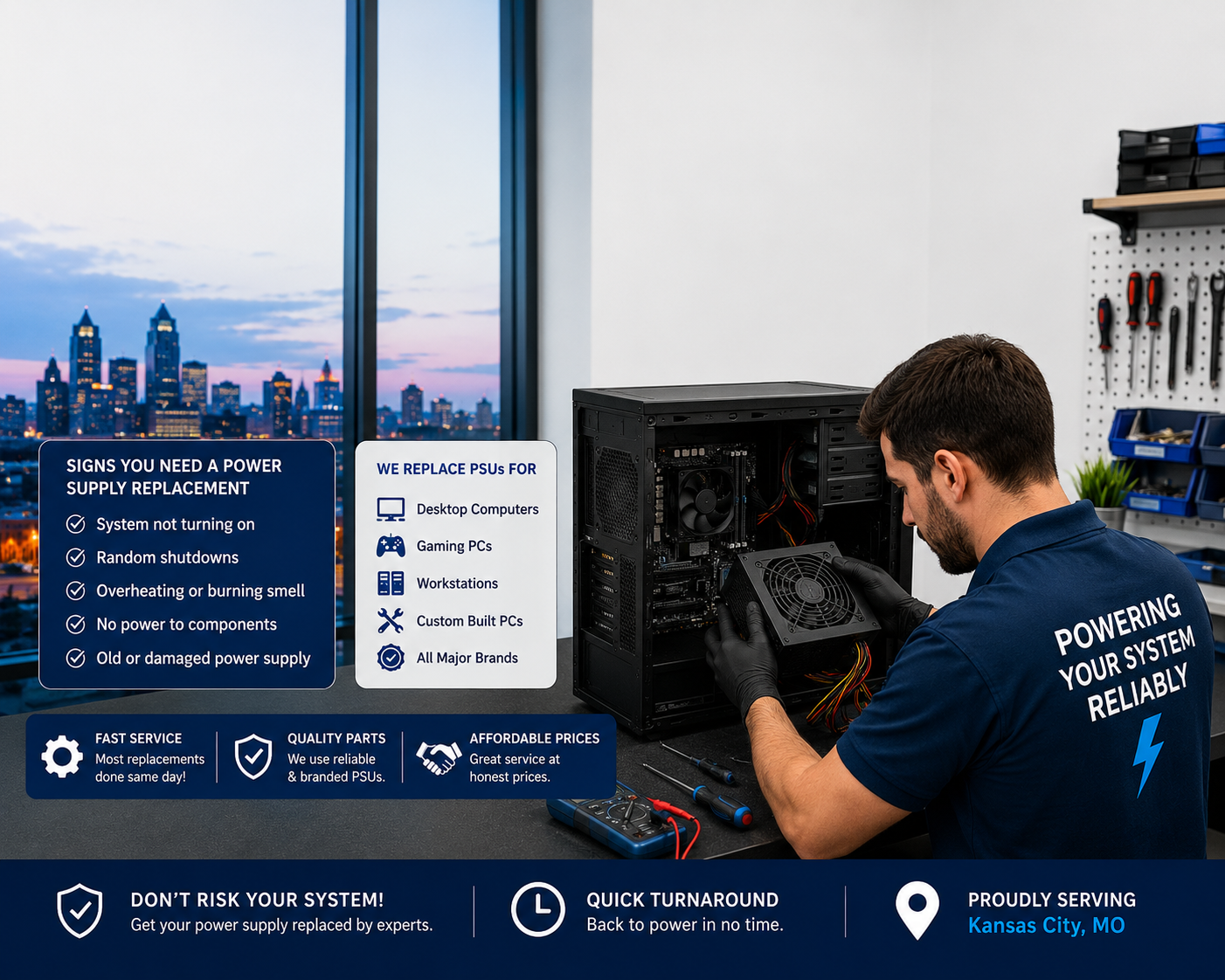
Understanding Common Power Supply Problems
A computer depends on a stable and reliable power supply to operate its processor, storage, cooling components, display, and other hardware correctly. When the power system begins to fail, the symptoms can sometimes look like an unrelated hardware problem. A desktop may suddenly shut down, refuse to turn on, restart without warning, or produce unusual noises. Laptops can experience charging problems, unexpected power loss, or difficulty maintaining normal performance. Understanding these warning signs is important because continuing to use a device with an unstable power source can place additional stress on other components. For Kansas City users, getting the problem assessed early can help determine whether the issue involves the power supply, battery, charger, motherboard, overheating, or another component.
Recognizing the Early Signs of a Power Problem
One of the most common signs of a power-related issue is a computer that unexpectedly turns off. If the system shuts down while running demanding applications, during startup, or even when performing basic tasks, the power delivery system should be considered as one possible cause. Other symptoms may include random restarts, failure to boot, intermittent charging, flickering displays, or a device that works for a short period before losing power. These symptoms should not automatically be blamed on the power supply because hardware and software problems can produce similar behavior.
A proper diagnosis helps separate power-related problems from other repair needs. For example, a damaged display may cause a blank or distorted screen even when the computer itself is operating normally. In situations where the device powers on but the display is cracked, black, flickering, or physically damaged, a screen replacement service may be more appropriate than replacing the power component. Examining the complete system before replacing parts helps prevent unnecessary repairs and ensures the actual source of the problem is addressed.
Why a Failing Power Supply Can Affect Performance
Power problems do not always result in an immediate complete failure. Sometimes a computer continues operating while experiencing unstable performance. Applications may close unexpectedly, the system may freeze, or the device may become unreliable when multiple programs are running. A desktop power supply that cannot consistently provide the required power may also contribute to instability when the processor, graphics hardware, storage devices, or cooling fans are under greater load.
A technician should consider the computer’s configuration when evaluating these symptoms. The required power can vary depending on the hardware installed in the system. A computer with upgraded components may have different power requirements than its original configuration. This is why selecting a replacement based only on physical size or appearance is not enough. The replacement must be compatible with the computer and its components.
Common Causes of Power Supply Failure
Power supplies can develop problems for several reasons. Normal component aging can reduce reliability over time, while dust accumulation, heat, electrical fluctuations, damaged cables, and poor ventilation can contribute to hardware stress. In desktop computers, internal power supply components can eventually wear out. Laptops can experience related problems involving chargers, charging ports, batteries, or internal power circuits.
Environmental conditions can also matter. A computer operating in a hot or poorly ventilated location may experience additional thermal stress. If a system repeatedly overheats, the underlying cooling problem should be addressed rather than treating shutdowns as a simple power issue. Professional cooling system repairs can involve inspecting fans, cleaning vents and heatsinks, replacing thermal paste, and checking whether the cooling system is working correctly. Addressing excessive heat can help distinguish overheating-related shutdowns from genuine power supply failure.
Power Supply Problems and Unexpected Shutdowns
Unexpected shutdowns are particularly frustrating because they can interrupt work, gaming, communication, or other important activities. However, an unexpected shutdown does not necessarily mean that the power supply has failed completely. A computer may shut down because of overheating, faulty hardware, operating system problems, or electrical instability. The safest approach is to diagnose the device instead of repeatedly restarting it and hoping the issue disappears.
When a desktop fails to start, a technician may examine the power connection, cables, power button, internal power supply, motherboard indicators, and other relevant components. For a laptop, the assessment may include the charger, charging connection, battery condition, and internal power circuitry. This diagnosis-first approach can help identify whether a replacement component is actually required.
When Power Supply Replacement Becomes Necessary
If testing confirms that the power supply is defective, replacing it can restore reliable operation. A power supply replacement service should begin with identifying the correct replacement and confirming compatibility with the computer. For desktops, factors such as wattage, connector types, physical dimensions, and system requirements should be considered. Installing an unsuitable unit can create additional problems, so compatibility should always be checked before installation.
Professional replacement also provides an opportunity to inspect the surrounding hardware. A failed power supply may not be the only component affected by an electrical problem. Technicians can check connections and examine the system for signs of overheating, damaged components, or other abnormalities. Testing the computer after installation is equally important because the goal is not simply to install a new component but to confirm that the system starts, operates, and remains stable.
Protecting Your Computer From Future Power Issues
Preventive maintenance can reduce some of the conditions that contribute to computer power problems. Keeping vents clear, allowing adequate airflow around the device, avoiding damaged power cables, and maintaining a clean operating environment are practical steps. Desktop users should also avoid placing the computer where airflow is blocked. Laptops should be used on suitable surfaces that do not obstruct their cooling openings.
It is also useful to pay attention to changes in behavior. A computer that previously operated normally but has started shutting down, restarting, overheating, or failing to charge deserves attention before the problem becomes more serious. Ignoring repeated warning signs can turn a manageable repair into a larger hardware problem.
Getting the Right Diagnosis in Kansas City
Power-related computer problems can be difficult to identify without examining the device as a complete system. Symptoms such as shutdowns, black screens, charging failures, slow performance, and random restarts can have several possible causes. A careful assessment helps determine whether the solution involves a power supply, display, cooling system, battery, software, or another component.
For homeowners, students, professionals, and businesses in Kansas City, the goal should be dependable computer operation rather than simply replacing parts based on symptoms. Identifying the actual source of the problem, choosing compatible components, and testing the system afterward can provide a more reliable repair outcome. When power issues appear repeatedly, professional diagnosis is a practical step toward restoring stable performance and preventing avoidable hardware damage.
Diagnosing Laptop and Computer Power Issues
Diagnosing a laptop or computer power problem requires more than checking whether the device turns on. A system that shuts down unexpectedly, fails to charge, restarts during use, or refuses to boot may have several possible causes. The issue could involve the battery, charger, charging port, power supply, motherboard, overheating, storage, or software. A proper diagnosis helps identify the actual source instead of replacing a component that is still working correctly. For Kansas City users, professional troubleshooting can save time, protect important files, and help determine the most practical repair solution.
Identifying Battery-Related Power Problems
Laptop batteries naturally lose capacity as they age, and a worn battery may no longer provide enough runtime for normal use. Common warning signs include rapid battery drain, unexpected shutdowns, failure to hold a charge, or a laptop that only works when connected to its charger. If the battery is significantly degraded, replacing it can restore dependable portable operation.
Before replacing a battery, it is important to confirm that the battery is actually responsible for the problem. Charging ports, adapters, motherboard components, and software settings can sometimes produce similar symptoms. A professional auto battery replacement assessment can include checking battery health, charging behavior, power retention, and the condition of related components. Quick Tech KC’s battery service process also focuses on matching the replacement to the laptop’s specific model and specifications.
Checking the Charger and Charging Connection
A laptop that does not charge properly should not immediately be assumed to have a bad battery. The charger, cable, charging port, and internal power circuitry should also be considered. A loose charging connection may cause intermittent charging, while a damaged port can prevent power from reaching the battery consistently.
Testing the laptop with a suitable charger can help narrow down the source of the problem. If the laptop works normally when connected to external power but loses power quickly after unplugging, the battery becomes a stronger possibility. If the computer does not respond even with a suitable power source, additional hardware testing may be necessary.
Understanding Storage and Power Symptoms
Some power-related complaints are actually performance problems. A computer may appear to be struggling with power because it takes a long time to start, applications take too long to load, or the system freezes during routine tasks. In these cases, the storage drive can be part of the problem rather than the power system itself.
An older mechanical drive can make a computer feel unusually slow, especially during startup and application loading. An Internal hard drive upgrade can replace an older drive with a faster SSD when the device is compatible. Quick Tech KC evaluates the laptop or desktop before installation and can also provide data transfer or cloning when requested.
Separating Hardware Problems From Software Issues
Software can also make a computer behave as though it has a hardware problem. Corrupted system files, unnecessary background processes, outdated drivers, startup issues, and poorly configured applications can contribute to slow performance, freezing, or unexpected behavior. This is why a good diagnostic process considers both hardware and software.
If the hardware checks out but the system remains slow or unstable, Windows system optimization may help improve overall responsiveness. Optimization can involve troubleshooting software-related problems, reviewing system performance, and addressing configuration issues rather than immediately replacing hardware. Quick Tech KC’s computer repair process begins with diagnosis before recommending a repair or replacement.
Testing for Overheating and Thermal Issues
Heat is another important factor when diagnosing unexpected shutdowns. A laptop or desktop may turn itself off when internal temperatures become too high. Dust buildup, restricted airflow, a failing fan, or an ineffective cooling setup can contribute to excessive heat. Because overheating and power failure can produce similar symptoms, technicians should evaluate both possibilities.
A computer that becomes extremely hot before shutting down may require cooling-system inspection rather than a power component replacement. Looking at temperatures, fan operation, airflow, and overall hardware condition can provide useful clues. This broader approach reduces the risk of treating the symptom instead of the underlying problem.
Examining Desktop Power Components
Desktop computers have several components that can influence power delivery. The power supply unit provides electricity to the internal hardware, while the motherboard distributes power to various components. Loose connections, damaged cables, failing hardware, or an inadequate power supply can prevent a desktop from starting correctly.
A desktop that suddenly turns off under heavy workloads may require closer inspection because demanding applications can place additional load on the system. A technician may check the power supply, internal connections, motherboard, processor, graphics hardware, and cooling system. Testing these components together provides a clearer picture of whether the power supply is actually failing.
Using a Diagnosis-First Repair Process
A reliable repair should begin with a structured assessment. The first step is to understand what the device is doing and when the problem occurs. Does it shut down during startup? Does it work only when plugged in? Does it freeze after several minutes? Does it restart while running demanding software? These details can help narrow the possibilities.
After the initial evaluation, hardware and software components can be tested individually. The results can then be used to determine whether repair, replacement, maintenance, or optimization is appropriate. Quick Tech KC describes its computer repair process as beginning with diagnosis and assessment, followed by an estimate and customer approval before repair and testing.
Protecting Data During Power Troubleshooting
Power problems should also be approached with data protection in mind. Unexpected shutdowns can interrupt file transfers, software updates, or other operations. Before major hardware work, backing up important documents, photos, business files, and other essential information is a sensible precaution.
Battery replacement normally does not require changing the storage drive, while an SSD replacement or operating system repair may involve additional data considerations. If files are important, customers should discuss data protection and transfer requirements before work begins. Quick Tech KC’s SSD service can include transferring existing data when requested.
When to Seek Professional Diagnosis
Repeated shutdowns, charging failures, startup problems, or unexplained performance changes should not be ignored. Continuing to use a computer with an unresolved power issue can make it difficult to determine the original cause and may increase the risk of additional problems. Professional diagnosis can identify whether the issue is related to the battery, charger, storage, software, cooling, power supply, or another component.
For laptop and computer owners in Kansas City, the most effective approach is to diagnose the problem first and then select the appropriate solution. Whether the device needs a battery replacement, storage upgrade, system optimization, or another repair, accurate testing helps avoid unnecessary expenses and supports more reliable performance. A careful assessment also gives users a clearer understanding of what caused the problem and what steps can help prevent it from returning.
Choosing the Right Power Supply Replacement
Choosing the right power supply replacement is an important part of restoring a computer that has experienced power-related problems. A replacement should not be selected simply because it fits inside the computer case or looks similar to the original component. Different computers have different power requirements, connectors, component configurations, and performance demands. Selecting an incompatible or inadequate power supply can lead to instability and may prevent the computer from operating correctly. For Kansas City users, a proper assessment before replacement can help ensure the new component is appropriate for the system and its existing hardware.
Understanding Your Computer’s Power Requirements
Before selecting a replacement power supply, it is important to understand the computer’s overall configuration. A basic office desktop may have very different requirements from a workstation or gaming computer with more demanding hardware. The processor, graphics hardware, storage devices, cooling fans, and other installed components all contribute to the system’s power needs.
The power supply should provide sufficient capacity for the computer without relying on guesswork. Technicians can examine the existing unit, internal components, connectors, and system specifications to determine what type of replacement is suitable. This assessment also helps identify whether the power supply is actually the cause of the problem or whether another component is responsible for the symptoms.
Considering CPU Requirements
The processor is one of the most important components to consider when evaluating a computer’s power needs. A system with a more capable processor may have different power requirements than an entry-level configuration. If the computer has recently received a processor upgrade, the power supply should be evaluated alongside the new hardware.
When hardware upgrades are being planned, professional CPU installation service can help ensure the processor is correctly selected and installed. Quick Tech KC’s CPU installation process includes component selection, removal of the existing CPU, socket preparation, cooler installation, system booting, and testing.
A processor upgrade should also be considered in relation to the computer’s cooling and power systems. Installing a more demanding component without considering the rest of the system can create compatibility or performance issues. A complete hardware assessment provides a better foundation for making upgrade decisions.
Evaluating RAM and Other Components
RAM does not normally determine the power supply choice by itself, but it is still useful to consider the complete hardware configuration. Additional memory can improve multitasking and system responsiveness, particularly when a computer is regularly running multiple applications. However, every upgrade should be checked for compatibility with the existing motherboard and hardware.
When upgrading memory as part of a broader computer improvement plan, RAM upgrades Service can help determine the appropriate memory type and capacity. A professional assessment can verify compatibility before installation and test the system afterward. This approach is useful when a computer is being upgraded rather than simply repaired.
Looking at all installed components together is especially important when a power supply is being replaced. A computer that has been upgraded over time may have different requirements from the configuration for which its original power supply was installed.
Checking Wattage and Compatibility
Wattage is an important consideration when choosing a replacement power supply, but it should not be the only factor. The unit must also provide the appropriate connectors and physical dimensions for the computer. A power supply with sufficient wattage may still be unsuitable if its connectors do not match the system or if it cannot fit correctly inside the case.
Professional diagnosis can help identify the correct specifications before installation. Technicians can inspect the existing power supply and compare it with the system’s hardware requirements. This reduces the possibility of purchasing a replacement that cannot be installed or does not provide the appropriate connections.
Avoiding an Undersized Power Supply
An undersized power supply may struggle to meet the demands of a computer when several components are working at the same time. Problems may become more noticeable when the system is performing demanding tasks. Random restarts, sudden shutdowns, or instability under load can sometimes indicate that the system’s power delivery requires further investigation.
However, these symptoms can also have other causes, including overheating, defective memory, storage problems, or motherboard issues. That is why replacing a power supply based solely on symptoms is not always the best approach. Testing should be performed first so that the replacement addresses a confirmed problem.
Considering Future Hardware Upgrades
A power supply replacement can also be an opportunity to consider the computer’s future needs. If the owner expects to add additional storage, upgrade the processor, install more memory, or make other hardware changes, those plans may influence the replacement decision.
Planning ahead can prevent the need to replace the power supply again after a major upgrade. However, future expansion should be realistic and based on the computer’s motherboard, case, cooling system, and other limitations. A technician can help determine whether the existing platform can support the planned improvements.
Checking Other Hardware During Replacement
Replacing a power supply is also a good opportunity to inspect other internal components. Loose cables, damaged connectors, excessive dust, and signs of overheating can affect system reliability. A technician may check the motherboard connections, storage devices, fans, memory, and other hardware while performing the repair.
Optical drives are less common in newer computers, but some desktops still depend on them for reading or writing discs. If the computer has an optical drive that has stopped working, a Desktop optical drive replacement may be considered as part of the broader computer repair process. This can be especially useful for users who still rely on physical media for software, archived files, or other purposes.
Testing the Replacement After Installation
Installing the correct power supply is only part of the repair. The computer should also be tested afterward to make sure the system starts properly and remains stable. Basic testing can include powering the device on, checking system behavior, monitoring performance, and confirming that connected hardware operates correctly.
If additional components were installed or replaced at the same time, those components should also be checked. For example, a processor installation requires boot testing and performance verification, while memory upgrades should be tested for proper recognition and stability. Quick Tech KC describes its hardware installation process as including diagnostic work and final inspection after installation.
Why Professional Selection Matters
Power supply replacement may appear straightforward, but selecting the correct component requires attention to the computer’s complete configuration. The right replacement should match the system’s requirements while providing suitable connections and physical compatibility. It should also support the computer’s current workload and, where practical, planned upgrades.
For Kansas City computer owners, professional assessment can make the process more straightforward. Instead of choosing a replacement based only on price or appearance, users can have the system evaluated first and receive guidance based on its actual condition. This helps reduce unnecessary purchases and provides a more reliable path toward restoring stable computer performance.
Making a Practical Replacement Decision
The best power supply replacement is the one that matches the computer’s real requirements and works reliably with its existing components. Factors such as system configuration, processor, memory, storage, graphics hardware, connectors, physical dimensions, and future upgrade plans should all be considered.
A careful replacement process should therefore include diagnosis, compatibility checking, installation, and final testing. Whether the computer needs a new power supply or has another underlying issue, taking the time to evaluate the complete system can help prevent repeated failures. With the right component and professional installation, Kansas City users can restore dependable power and continue using their computers with greater confidence.
Preventing Hardware Damage From Power Problems
Power problems can affect much more than a computer’s ability to turn on. Unstable power, repeated shutdowns, overheating, and faulty internal components can create conditions that affect storage drives, memory, processors, motherboards, and other hardware. In some cases, users may continue operating a computer even after noticing warning signs because the device still works intermittently. This can make troubleshooting more difficult and increase the possibility of additional problems. Understanding how to respond to power-related symptoms can help Kansas City computer owners protect their equipment and reduce unnecessary repair costs.
Recognizing Power Problems Before They Become Serious
Early warning signs should never be ignored. A computer that suddenly shuts down, restarts without warning, struggles to boot, or loses power during normal use may require professional evaluation. Other signs can include unusual electrical sounds, inconsistent charging, system freezes, or performance changes that appear after the computer has been running for some time.
Not every symptom points directly to a defective power supply. Overheating, damaged hardware, operating system problems, and malware can sometimes create similar behavior. A complete diagnostic assessment is therefore important before replacing components. Identifying the actual cause allows the correct repair to be performed instead of replacing hardware unnecessarily.
Protecting the Operating System During Power Failures
Unexpected power loss can interrupt operating system processes and active file operations. If a computer shuts down while important system files are being written, users may later experience startup errors, application problems, or other software-related issues. Repeated improper shutdowns can make troubleshooting more complicated, particularly when the system already has underlying software problems.
When power-related incidents have affected Windows functionality, an Operating System repair service can help assess and address system-level problems. Repair may involve troubleshooting startup issues, damaged system components, recovery options, or other Windows-related concerns. A diagnosis-first approach helps determine whether the operating system is actually damaged or whether the original issue is still related to hardware.
Keeping Malware From Complicating Diagnosis
Malware can sometimes produce symptoms that appear similar to hardware problems. A computer infected with malicious software may become unusually slow, freeze, display unexpected behavior, or experience unexplained system instability. When these symptoms occur alongside power issues, it can be difficult for an inexperienced user to determine what is causing the problem.
Professional Virus and malware removal can help identify and remove malicious software that may be affecting system performance. Quick Tech KC’s service includes malware scanning and detection, removal and cleanup, and steps intended to improve system protection. Separating security problems from genuine hardware faults is an important part of accurate troubleshooting.
Avoiding Unnecessary Hardware Replacement
One of the easiest ways to increase repair costs is to replace components without confirming the underlying problem. For example, a computer that repeatedly freezes might have a power issue, overheating problem, faulty storage device, memory problem, or software issue. Replacing the power supply alone may not solve the problem if another component is responsible.
A professional assessment can help determine which component requires attention. Technicians can review the system’s behavior, inspect hardware, test relevant components, and consider software conditions before recommending a replacement. This approach protects both the computer and the owner’s budget.
Managing Software After a Power-Related Repair
Once a power problem has been repaired, it is useful to ensure that the computer’s software environment is stable. Outdated, incorrectly configured, or incompatible programs can contribute to crashes and performance problems. Installing software without checking system requirements can also create unnecessary conflicts.
When users need help setting up essential programs or configuring applications after a repair, software installation can provide a structured way to get the system ready for normal use. Proper installation and configuration can help ensure that applications work correctly with the operating system and available hardware.
Maintaining Adequate Cooling
Power problems and heat-related problems can sometimes overlap. A computer under excessive thermal stress may shut down to protect internal components. If the user assumes that every unexpected shutdown is caused by the power supply, the actual cooling problem may remain unresolved.
Keeping air vents clear and ensuring that fans operate correctly are simple but important maintenance steps. Dust accumulation inside a desktop or laptop can restrict airflow, while aging thermal material or a failing cooling fan can make temperature control more difficult. If overheating repeatedly occurs, the cooling system should be assessed before additional hardware is replaced.
Protecting Internal Components
The motherboard, processor, storage drives, memory, and other components depend on stable operating conditions. Electrical instability can be particularly concerning when combined with faulty hardware or poor-quality connections. Users should avoid continuing to operate a computer that shows repeated electrical or power-related warning signs.
Physical inspection is also important. Damaged cables, loose connections, excessive dust, or improperly installed components can affect reliability. During a power-related repair, checking surrounding hardware can help identify additional conditions that may contribute to future failures.
Taking Care During Unexpected Shutdowns
If a computer suddenly loses power, users should avoid repeatedly forcing it to restart without understanding what happened. If the system was unusually hot, making abnormal noises, or showing other warning signs, it is better to allow the device to cool and arrange an assessment.
Users should also pay attention to whether the problem occurs under specific conditions. A computer that shuts down only during demanding tasks may have different causes from one that loses power immediately after startup. Recording when the problem happens can give technicians useful information during diagnosis.
Using Professional Diagnosis to Prevent Further Damage
A professional repair process can help prevent small problems from becoming larger hardware failures. Rather than replacing multiple parts at once, technicians can evaluate the computer’s power delivery, cooling, operating system, security condition, and installed hardware. This provides a clearer understanding of what needs to be repaired.
For Kansas City computer users, diagnosis is particularly valuable when a device has experienced repeated shutdowns or unexplained instability. A technician can explain whether the system requires a component replacement, operating system repair, malware cleanup, software configuration, or another form of service.
Building Better Computer Maintenance Habits
Preventing hardware damage begins with paying attention to changes in computer behavior. Regularly maintaining the device, keeping software properly configured, protecting the system from malware, and addressing overheating can all support long-term reliability. Users should also avoid ignoring recurring power problems simply because the computer continues to function.
When a power issue appears, the safest approach is to identify its cause before continuing normal use. A properly diagnosed and repaired system is less likely to experience repeated failures caused by an unresolved underlying problem. By combining appropriate hardware service with operating system care, security maintenance, and proper software installation, Kansas City users can help keep their computers dependable and reduce the risk of avoidable hardware damage.
Protecting Data During Power Supply Repairs
Protecting personal and business data should be an important consideration whenever a computer experiences a power supply problem. Documents, photos, customer records, financial information, applications, and other files may be stored on the device’s internal drive. A sudden shutdown or hardware failure does not automatically mean that data will be lost, but continuing to operate an unstable computer can create additional risks. Before performing significant repairs, users should consider the condition of the storage device and make sure important information is protected whenever possible. For Kansas City computer owners, taking a data-first approach can make the repair process safer and more organized.
Understanding the Connection Between Power and Data
A computer relies on stable power while reading, writing, and managing information on its storage device. If power is unexpectedly interrupted while files are being saved, transferred, or updated, the operation may not complete properly. In some situations, users may notice corrupted files, application errors, or operating system problems afterward.
This does not mean every power failure will damage stored information. Modern computers and operating systems are designed to handle many unexpected shutdown situations. However, repeated interruptions can create complications, particularly when a storage drive already has signs of failure. If important information is stored on the computer, it is better to take precautions before beginning major hardware work.
Creating a Backup Before Repair
One of the most practical ways to protect important information is to maintain a current backup. A backup provides another copy of important files in case the computer’s storage device becomes inaccessible or the repair requires additional work. Personal photos, work documents, school projects, customer information, and other essential files should be prioritized.
Professional backup solutions can help users establish a more organized approach to protecting their information. A suitable backup strategy may involve storing copies separately from the primary computer so that a hardware failure does not affect every copy of the data. Users should also verify that important files have actually been backed up rather than assuming that a backup process completed successfully.
What Happens When a Computer Cannot Access Its Data?
If a computer will not start after a power problem, the inability to access files does not necessarily mean that the data is permanently gone. The storage device may still contain recoverable information even when the operating system cannot load. However, users should avoid repeatedly experimenting with the device if important files are at risk.
Professional data recovery services can be considered when files have been deleted, corrupted, or become inaccessible because of storage or hardware problems. Quick Tech KC provides data recovery services for situations involving hard drives, SSDs, USB devices, and memory cards, with an evaluation used to determine the potential recovery approach. (quicktechkc.com)
Avoiding Unnecessary Changes to the Storage Drive
When a computer has a power problem, users may be tempted to reinstall the operating system, format the storage drive, or make other changes in an attempt to get the system working again. These actions can be risky when important files have not been backed up.
If data recovery may be necessary, minimizing unnecessary changes to the affected storage device is generally a sensible precaution. A technician can evaluate the condition of the drive and determine whether the issue is related to the power system, operating system, file structure, or physical storage hardware. This helps protect the possibility of recovering valuable information.
Protecting Business and Work Files
Businesses can be especially affected by power-related computer failures. Accounting records, customer information, project documents, emails, inventory files, and other operational data may be stored on computers or connected systems. Losing access to these files can interrupt normal business activities.
For this reason, businesses should consider both local and separate backup options. A backup strategy should account for which files are essential, how frequently they change, and how quickly they would need to be restored after a failure. Testing backups periodically is also useful because an untested backup may not provide the expected protection when it is needed.
Considering Network-Connected Storage
Many modern computers are connected to home or business networks. Network-connected systems may provide access to shared folders, servers, printers, cloud services, and other resources. When a computer experiences a power-related failure, network connectivity may also be affected if the device provides an important connection or depends on network-based resources.
Professional computer network services can help businesses and users address network setup, connectivity problems, configuration issues, and other networking requirements. Quick Tech KC’s networking services include network setup, repair, assessment, planning, and ongoing support. (quicktechkc.com)
Safely Preparing for Hardware Replacement
Before replacing a defective power supply, it is useful to determine whether the computer can still start and whether its storage drive is accessible. If the system operates normally enough to access files, important information can be backed up before hardware work begins.
If the computer does not start, the repair process should prioritize diagnosis. Technicians can determine whether the power supply is the actual problem and whether the storage device appears healthy. This avoids unnecessarily modifying the operating system or storage drive before the data situation is understood.
Data Protection During Component Installation
A power supply replacement normally focuses on restoring proper electrical power to the computer rather than changing the storage device. However, technicians should still work carefully around internal components and cables. Proper handling can reduce the risk of accidentally disconnecting or damaging storage hardware during installation.
If other upgrades are planned at the same time, data protection becomes even more important. For example, replacing a storage drive may involve transferring files from the old drive to the new one. Users should communicate their data requirements before work begins so that the appropriate procedures can be followed.
Keeping Multiple Copies of Important Information
A single backup may not always provide sufficient protection. Important information can benefit from having multiple copies stored in different locations or systems. If both the original computer and its backup are exposed to the same hardware failure, accidental deletion, or other event, having another copy can provide an additional layer of protection.
Users should also periodically review their backup strategy. Files change over time, and an old backup may not contain recent work. Regular backups are particularly valuable for businesses and individuals who rely heavily on their computers for important information.
Knowing When to Stop Troubleshooting Yourself
Basic troubleshooting can be useful, but users should know when continued experimentation may put data at greater risk. If a computer repeatedly shuts down, makes unusual noises, fails to recognize its storage drive, or shows signs of physical hardware failure, it is better to stop unnecessary troubleshooting and seek professional assistance.
This is especially important when the computer contains irreplaceable photos, business records, financial documents, or other information that cannot easily be recreated. A careful diagnosis can help determine the safest next step without unnecessarily altering the affected system.
Building a Reliable Data Protection Plan
Power supply repairs should address more than simply getting a computer to turn on again. Protecting the information stored on the device should be part of the overall repair strategy. Backups, careful hardware handling, proper diagnosis, and professional data recovery when necessary can all help reduce the impact of a computer failure.
For Kansas City users, a reliable approach combines preventive backup practices with professional repair when power problems occur. Maintaining current backups, monitoring computer behavior, and addressing hardware issues early can significantly improve the chances of keeping important information accessible. By treating data protection as part of computer maintenance rather than an afterthought, users can be better prepared for unexpected power and hardware problems.
Maintaining Reliable Computer Power and Performance
Maintaining reliable computer power and performance requires more than replacing a failed component when something goes wrong. Regular attention to hardware, cooling, storage, software, and connected devices can help computers remain dependable for longer. Small problems such as an unresponsive keyboard, damaged screen, unusual shutdowns, or failing peripherals can gradually interfere with everyday use. Addressing these issues early can prevent minor hardware concerns from becoming larger repair problems. For computer users in Kansas City, a consistent maintenance approach can help keep devices productive for work, school, communication, entertainment, and personal tasks.
Paying Attention to Everyday Hardware Problems
Computers often provide warning signs before a larger hardware failure occurs. Keys that stop responding, screens that flicker, devices that freeze, or peripherals that disconnect unexpectedly should not simply be ignored. While these problems may not be directly related to the power supply, they can indicate that a device needs maintenance or professional inspection.
For example, a damaged or unresponsive keyboard can make normal computer use difficult even when the rest of the system is operating correctly. A Keyboard replacement can restore normal input when keys are damaged, stuck, or no longer functioning properly. Quick Tech KC evaluates compatibility and tests the replacement after installation to help ensure the keyboard works correctly with the device.
Keeping Screens in Good Condition
The display is another essential part of a computer or mobile device. Cracked screens, flickering displays, black screens, or unresponsive touch functions can interfere with communication and daily tasks. Physical screen damage should be addressed rather than continuing to use a device with a worsening display problem.
When a phone or compatible device has a damaged display, mobile phone screen repair can provide a practical solution. Professional screen service involves identifying the device and selecting a compatible replacement before installation and testing. Repairing a damaged screen can also make the device easier and safer to use instead of requiring an immediate replacement of the entire phone.
Maintaining Reliable Computer Power
Stable power remains one of the foundations of dependable computer performance. Users should pay attention to repeated shutdowns, unexpected restarts, charging problems, or startup failures. These symptoms can originate from different components, so proper diagnosis is important before purchasing replacement hardware.
A power supply should be evaluated based on the computer’s actual hardware configuration. Desktop systems may have different power requirements depending on the processor, graphics hardware, storage devices, cooling components, and other installed equipment. Replacing a defective unit with a compatible component can restore stability, but testing should confirm that the power supply is the actual cause of the problem.
Keeping Cooling Systems Working Properly
Power and temperature are closely connected when it comes to system reliability. A computer that becomes excessively hot may slow down, freeze, restart, or shut down unexpectedly. Dust buildup, restricted airflow, failing fans, or ineffective thermal transfer can all contribute to overheating.
Users can help maintain reliable performance by keeping ventilation areas clear and avoiding environments where airflow is restricted. If a computer regularly becomes hot or its fans operate loudly for extended periods, professional inspection may be worthwhile. Addressing cooling problems can reduce thermal stress and help the computer maintain more consistent performance.
Maintaining Storage Performance
Storage health also affects how quickly and reliably a computer performs. A system may become noticeably slower when an aging storage drive begins experiencing performance problems or when available storage space becomes limited. Slow startup, delayed application loading, and frequent freezing should be investigated rather than automatically attributed to the power supply.
Keeping important files organized and maintaining sufficient free storage can support everyday performance. Users with older drives may also consider a compatible storage upgrade when the computer’s hardware supports it. Any storage replacement should be approached carefully when important files are involved, particularly if a backup has not been created.
Checking Older Desktop Components
Older desktop computers may contain hardware that is no longer common in newer systems. Optical drives are one example. Although many modern computers no longer include disc drives, some users still rely on them for accessing software, archived documents, music, movies, or other physical media.
When an optical drive stops reading or writing discs, a Desktop optical drive replacement can be considered as part of a broader computer repair assessment. Checking compatibility before replacement is important because desktop cases, drive interfaces, and available connections can vary between systems.
Addressing Mobile Device Problems Early
Computer maintenance can also extend to the mobile devices people depend on every day. A phone may experience charging problems, physical damage, software issues, screen failures, or other problems that interfere with normal use. Continuing to use a damaged device without addressing the underlying problem may make everyday tasks more difficult.
A professional mobile phone fix can help determine what is causing the device to malfunction and whether repair or replacement is the more practical option. A diagnosis is particularly useful when the symptoms are unclear because several different components can cause similar problems.
Keeping Software and Hardware Balanced
Reliable performance depends on both physical components and the software running on them. Even a computer with good hardware can become difficult to use when software is poorly configured, unnecessary applications consume resources, or system problems remain unresolved. Regular updates, appropriate security practices, and sensible application management can help maintain a stable environment.
Users should also avoid installing software from unreliable sources or allowing unnecessary programs to run automatically at startup. When performance problems persist despite basic maintenance, professional troubleshooting can help determine whether the issue is software-related or connected to hardware.
Backing Up Important Information
Performance maintenance should always be accompanied by data protection. Hardware can fail unexpectedly, and power problems can sometimes prevent users from accessing their files. Important documents, photographs, business records, and other valuable information should therefore be backed up regularly.
A good backup strategy provides an additional layer of protection if a computer develops a serious hardware problem. Users should periodically confirm that backups are completing correctly and that important recent files are included. This becomes especially important before major repairs, storage upgrades, or operating system work.
Choosing Professional Computer Maintenance
Professional service can be useful when a problem continues after basic troubleshooting or when several symptoms appear at the same time. A computer that shuts down unexpectedly while also overheating, slowing down, or displaying hardware errors may have more than one underlying issue. Diagnosing the entire system can help identify which components actually require attention.
Quick Tech KC provides repair and replacement services for computers, laptops, and mobile devices in Kansas City. A diagnosis-first approach allows the technician to evaluate the device before recommending a specific repair. This can help users avoid unnecessary component replacements and make more informed decisions about maintaining their equipment.
Building Long-Term Reliability
Reliable computer performance comes from consistent care rather than waiting until a complete failure occurs. Keeping hardware clean, maintaining adequate airflow, monitoring unusual behavior, protecting important data, and addressing damaged components early can all contribute to longer-lasting devices.
Kansas City users can also benefit from evaluating their computers periodically, particularly when systems become older or are used heavily for work and other demanding activities. Whether the issue involves power, cooling, a keyboard, display, storage, or another component, timely diagnosis can reduce disruption and help maintain dependable performance.
A reliable computer should provide consistent power, stable operation, responsive hardware, and secure access to important information. By combining preventive maintenance with professional repair when necessary, users can reduce avoidable failures and get more useful life from their devices. The goal is not simply to fix a problem after it appears but to maintain the entire system so that it continues supporting everyday needs with fewer interruptions.
Conclusion
Reliable power is essential for keeping computers and laptops running safely and consistently. From unexpected shutdowns and charging problems to overheating and hardware instability, identifying the real cause early can help prevent more serious issues. Proper diagnosis, compatible replacement parts, regular maintenance, and data protection all play an important role in maintaining dependable computer performance.
For Kansas City users dealing with power supply problems or other device issues, Quick Tech KC LLC provides repair and replacement services for laptops, desktop computers, and mobile devices. The company offers services including power supply replacement, battery replacement, hardware upgrades, cooling repairs, operating system support, data recovery, and other computer and phone repairs.
Whether your computer is shutting down unexpectedly, running slowly, overheating, or experiencing another hardware problem, having the device properly assessed can help you choose the right solution. Quick Tech KC LLC focuses on diagnosing the problem, explaining the repair cost, completing the necessary work, and testing the device before returning it to the customer.
FAQs
1. How do I know if my computer needs a power supply replacement?
Common signs include unexpected shutdowns, random restarts, failure to turn on, unusual power behavior, or instability during demanding tasks. However, these symptoms can have other causes, so professional diagnosis is recommended before replacing the power supply.
2. Can a faulty power supply damage other computer components?
A defective or unstable power supply can contribute to hardware problems, which is why continuing to use a computer with repeated power issues is not recommended. A technician can inspect the system and determine whether other components have also been affected.
3. How long does a power supply replacement take?
The time depends on the computer model, the replacement component, and whether additional problems are discovered during diagnosis. Simple repairs may take a few hours, while more complex computer repairs can take longer.
4. How much does power supply replacement cost in Kansas City, MO?
The cost depends on the type of computer, required power supply, parts, and complexity of the repair. Quick Tech KC LLC diagnoses the issue first and provides an estimate before proceeding with the repair.
5. Is it better to repair or replace a computer with power problems?
It depends on the computer’s age, condition, hardware configuration, and repair cost. If the system has otherwise useful hardware, replacing a faulty power supply may be worthwhile. A professional assessment can help determine whether repair or replacement makes more financial sense.
References
- Quick Tech KC LLC — Computer, laptop, desktop, power supply replacement, and other device repair services in Kansas City, MO.
Quick Tech KC LLC - Quick Tech KC LLC — Computer repair services, including power supply replacement and hardware troubleshooting.
Computer Repair Service - Quick Tech KC LLC — Laptop battery replacement, charging, and battery-related repair services in Kansas City.
Laptop Battery Replacement Service - Quick Tech KC LLC — SSD installation and internal hard drive upgrade services for improving computer storage and performance.
SSD Installation Services - Quick Tech KC LLC — Cooling system repair and maintenance services for laptops and computers experiencing overheating issues.
Cooling System Service - Microsoft Support — Official guidance for Windows recovery options, system repair, backups, and recovery tools.
Windows Recovery Options - Microsoft Support — Official information about Windows Backup and protecting important files and settings.
Windows Backup - Microsoft Support — Guidance on Windows Recovery Environment and troubleshooting startup and system problems.
Windows Recovery Environment